Quick answer: To build a useful campaign dashboard from CSV reports, define what one row represents, map equivalent fields, verify totals, then group the normalized data around a decision. A shared campaign name can connect reporting groups, but it does not remove duplicates or reconcile attribution.
This tutorial uses four fictional rows to compare reported purchase efficiency between two channels.
Start with two small CSV reports
Save the first example as search.csv:
Date,Campaign,Platform,Cost,Impressions,Clicks,Conversions,Revenue
2026-10-01,Autumn Sale,Search,120,6000,240,12,720
2026-10-02,Autumn Sale,Search,180,9000,270,18,1080
Save the second as social.csv:
Day,Campaign name,Network,Amount spent,Impressions,Link clicks,Purchases,Purchase value
2026-10-01,Autumn Sale,Social,150,15000,300,10,600
2026-10-02,Autumn Sale,Social,150,15000,240,5,300
These illustrative files use USD, destination clicks, purchase conversions and a shared revenue valuation convention. They are not exact exports from a named platform.
Download the fictional Search CSV
Download the fictional Social CSV
Real reports need those checks explicitly. Mapping “Results” to conversions would be wrong if one file counts purchases and the other counts video views.
Define the row grain before uploading
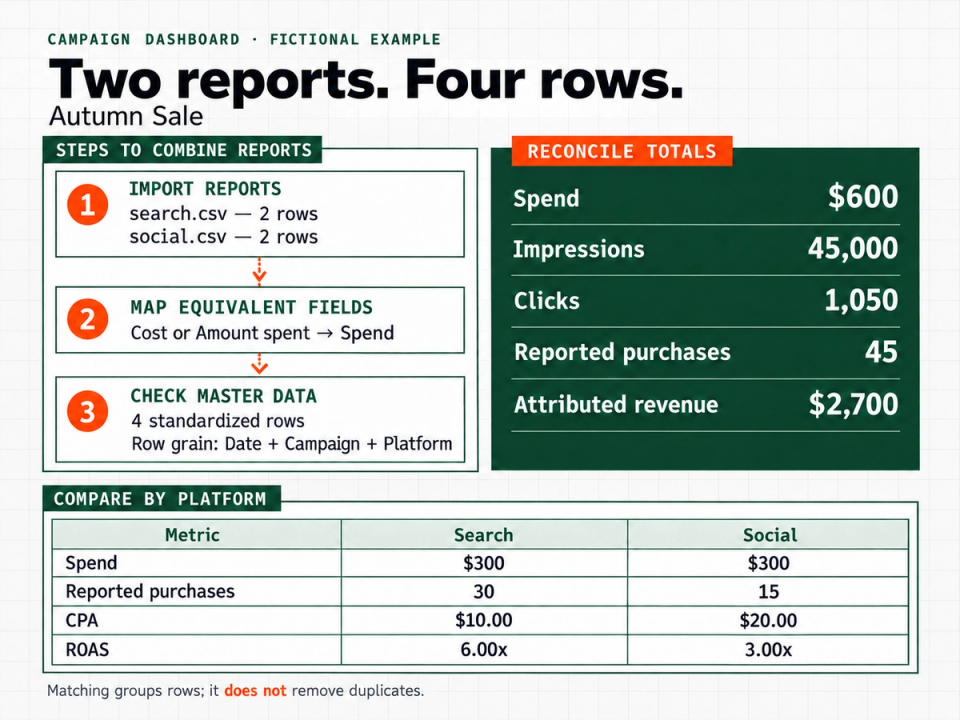
The grain is one campaign, on one date, on one platform. The natural identifying combination here is Date + Campaign + Platform.
Four rows are legitimate: each platform has one row per day. The repeated campaign name describes different activity.
Do not add a two-day campaign summary beneath the daily rows. That would repeat the same delivery. Likewise, do not upload yesterday’s export alongside a replacement export that already includes yesterday. Segmented reports can contain both detailed rows and totals, so inspect the file rather than assuming every row is additive. Google’s segmentation example illustrates how a report can contain an original row alongside its breakdown.
Expected reconciliation totals: four data rows, $600 spend and 45,000 impressions.
Upload and map the fields
Open the Campaign Dashboard, select Choose Campaign Reports, and choose the two CSV files. The tool currently accepts CSV, XLS and XLSX, with limits of eight reports and 250,000 rows per analysis; available device memory affects large files.
Review every suggested mapping. For these examples, use:
| Standard field | Search file | Social file |
|---|---|---|
| Date | Date | Day |
| Campaign | Campaign | Campaign name |
| Platform | Platform | Network |
| Spend | Cost | Amount spent |
| Impressions | Impressions | Impressions |
| Clicks | Clicks | Link clicks |
| Conversions | Conversions | Purchases |
| Revenue | Revenue | Purchase value |
Map raw totals, not precomputed CTR, CPA or ROAS. Check date and number formats. Preserve campaign IDs as text, especially when leading zeros matter.
Leave unavailable fields unmapped. These files contain no reach, video starts or video completions, so they cannot support frequency, VCR or CPCV.
Choose a match key without collapsing source rows
For this miniature example, choose Campaign as the match field so both files belong to the Autumn Sale reporting group. Keep Platform mapped so you can compare channels.
That matching choice does not change the underlying grain. The tool creates one standardized Master Data row for every nonempty source row, with no automatic deduplication. Its dashboard then aggregates those rows into the selected groups. See the Master Data workflow.
In real accounts, use stable IDs or suitable field combinations to avoid merging unrelated clients whose campaigns share a name.
Review the normalized data before selecting Build Dashboard. Expect four rows, not one row per campaign. If you see eight after uploading the same files twice, matching has not made the duplicate rows safe.
Reconcile the dashboard before interpreting it
The expected totals are $600 spend, 45,000 impressions, 1,050 clicks, 45 reported purchases and $2,700 attributed revenue.
The overall calculated KPIs are:
- CPM: $600 ÷ 45,000 × 1,000 = $13.33.
- CTR: 1,050 ÷ 45,000 × 100 = 2.33%.
- CPC: $600 ÷ 1,050 = $0.57.
- CPA: $600 ÷ 45 = $13.33.
- ROAS: $2,700 ÷ $600 = 4.50x.
These are ratios of totals, not averages of the files’ rates. For example, Google defines average CPA using total conversion cost divided by conversions.
Treat 45 as reported purchases, not automatically 45 distinct customers or deduplicated orders. Separate platforms may claim credit for the same transaction. Field mapping cannot solve that measurement problem.
Build a view that supports a decision
Start with spend, purchases, CPA and ROAS. Then group by Platform:
| Metric | Search | Social |
|---|---|---|
| Spend | $300 | $300 |
| Reported purchases | 30 | 15 |
| CPA | $10.00 | $20.00 |
| ROAS | 6.00x | 3.00x |
The example supports a specific observation: Search recorded twice as many purchases for the same spend, with half the CPA. Social had the lower CPM, $10 versus $20, but cheaper impressions did not translate into better reported purchase efficiency.
Next, investigate whether attribution windows and customer quality are comparable. Two days of synthetic figures do not justify a general channel recommendation or budget change.
Keep reach out of this combined view. Reach is non-additive, and the tool applies safeguards before calculating frequency. Google’s reach documentation explains why audience deduplication matters.
Keep a reusable reporting checklist
For the next reporting cycle:
- Record the date range, time zone, currency and extraction date.
- Describe the row grain and remove overlapping exports or summary rows.
- Confirm click, conversion and revenue definitions.
- Review mappings and campaign matching fields.
- Reconcile source row counts and raw totals.
- Inspect channel-level results before interpreting the overall number.
- Record one observation, one uncertainty and one next action.
- Download the normalized data if you need a retained reporting copy.
The tool offers canonical CSV export or an XLSX containing MASTER_DATA and a schema README. Existing workbook templates are not yet certified for automatic compatibility. Source files are processed locally in the browser; device saving and sharing a selected snapshot are optional. Review the current export and storage details.
Download the campaign reporting checklist (.txt)
Frequently asked questions
Will the dashboard refresh itself from my ad accounts
This workflow uses manually uploaded exports. Upload a new, nonoverlapping reporting set when you want to update the analysis.
Does matching campaigns remove duplicate rows
No. Matching supports grouping. Remove duplicate or overlapping records before relying on the totals.
Can I keep working in Excel
Yes. Download Master Data as CSV or XLSX, then inspect the schema and adapt your workbook’s imports as needed.
Build your first campaign dashboard
Open the Campaign Dashboard and reproduce the four-row, $600 total. Once it reconciles, repeat with clean exports from your own campaigns.