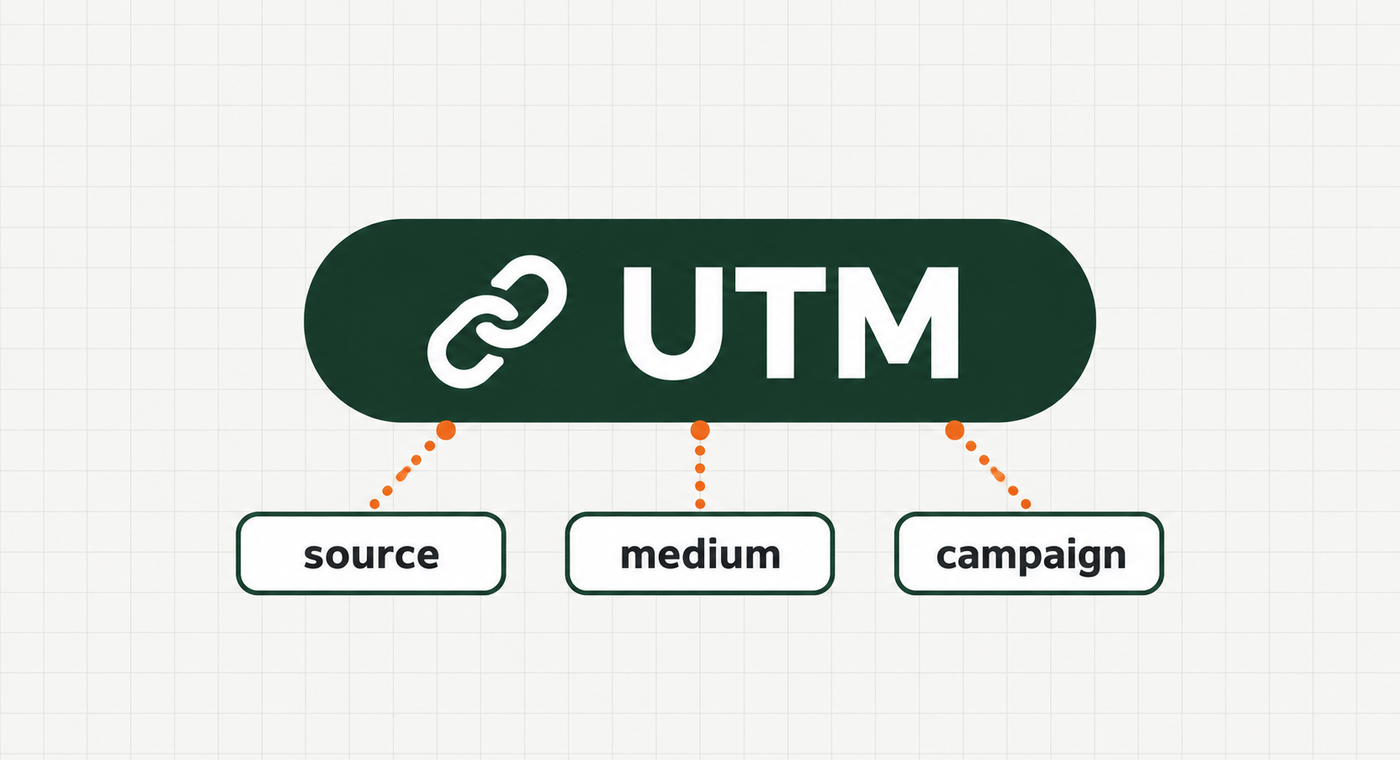
A free UTM builder turns a destination URL and a few campaign labels into a tagged link. To create one, enter the page URL, source, medium, and campaign; add a content label if you need to distinguish link placements; then generate and copy the result.
This walkthrough builds two links for a workshop email: one for its main button and one for a text link. Start with the UTM Builder open beside your campaign brief.
Gather the four inputs before building the URL
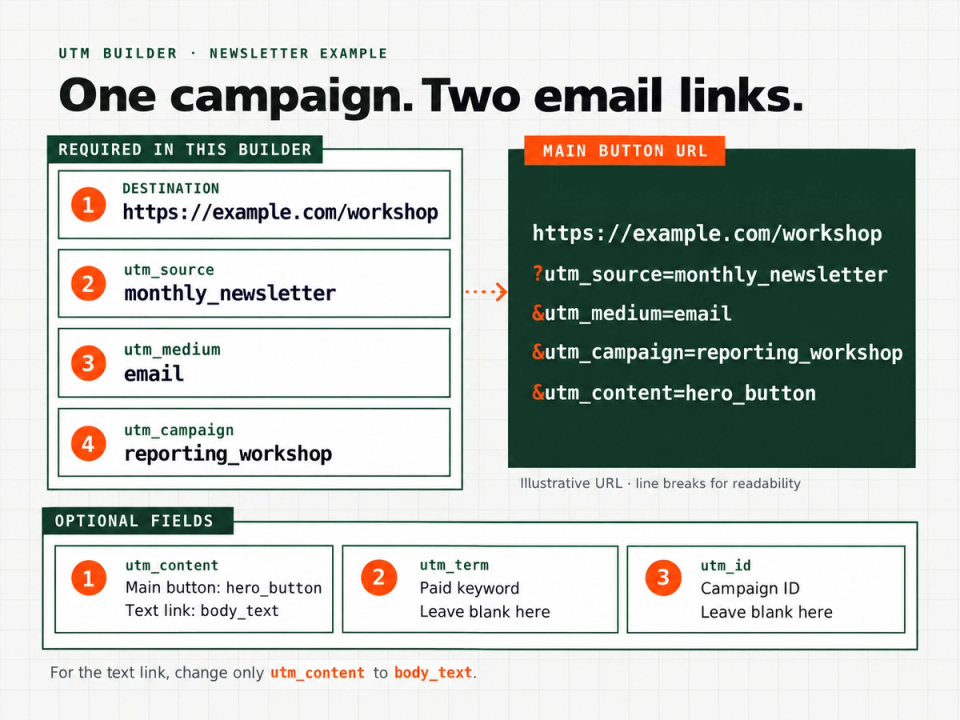
For this example, imagine a monthly newsletter promoting a reporting workshop. The destination is a fictional page at https://example.com/workshop. You want to label the newsletter and distinguish its two links without creating two different campaigns.
Write down these inputs first:
| Input | Example value | What you are deciding |
|---|---|---|
| Destination URL | https://example.com/workshop | The page the reader should reach |
| Source | monthly_newsletter | Which newsletter carries the link |
| Medium | The channel used to distribute it | |
| Campaign | reporting_workshop | The promotion both links belong to |
Google defines source as the referrer, medium as the marketing medium, and campaign as the promotion label. Its manual-tagging guidance recommends including all three when adding UTM parameters. Google Analytics URL-builder documentation.
Use your real landing page. Copy its full address, then decide the labels before producing placement variations.
Build the first newsletter link
In the builder, select Build URL. Enter the destination and the three labels from the table. These four inputs are marked required. For the main button, enter hero_button in utm_content. Leave utm_term and utm_id empty for this particular example. Those optional fields are available when your campaign needs them.
Keep the distinction between the campaign and the placement clear. reporting_workshop describes the promotion; hero_button describes this link's position in the message. Google documents utm_content as a way to distinguish creatives or multiple links within one email. UTM parameter definitions.
Choose the formatting controls deliberately
The builder offers controls to trim whitespace, replace spaces with underscores, and lowercase UTM values. Select the controls that match the labels you intend to use, rather than treating them as decoration.
For this example, the values are already lowercase and use underscores. That makes them easy to compare with the brief. Google treats parameter values as case-sensitive, so Monthly_Newsletter and monthly_newsletter are different values. Google's manual-tagging guidance.
Do not lowercase the entire destination address yourself. Keep your attention on the UTM values you are assigning, and retain the landing-page address supplied for the campaign.
Generate the URL and use the copied result
Choose Generate URL, then use Copy in the output section.
Here is a manually assembled illustration of the labels in this example, not a promise about the tool's exact output order:
https://example.com/workshop?utm_source=monthly_newsletter&utm_medium=email&utm_campaign=reporting_workshop&utm_content=hero_button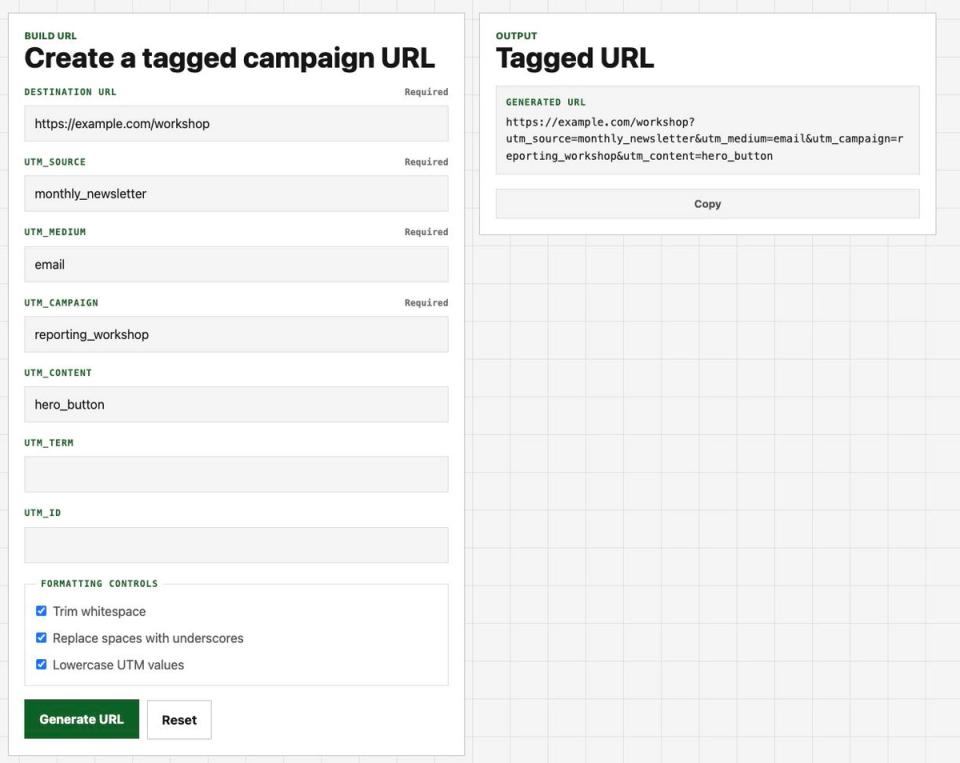
The first query parameter follows a question mark, and subsequent parameter pairs are separated by ampersands. Parameter order can vary.
Paste the copied URL into the email button's destination field. Keep the visible button wording, such as “Reserve a seat,” separate from the URL. You do not need to show the long tagged address as the button label.
If the destination already contains a query string, start from that complete address in the builder. Do not tack the example's question mark and parameters onto it by hand. Use the generated result as the link you carry into the email editor. Open the copied link and confirm it reaches the intended page. If a redirect removes the tags, investigate that handoff before using the link; generating a URL alone does not verify that analytics collected it.
Make the second link by changing one value
For the text link lower in the same email, keep the destination, source, medium, and campaign unchanged. Replace the content value with body_text, then generate and copy again.
Your working note should now look like this:
| Placement | Shared campaign | Content value |
|---|---|---|
| Main button | reporting_workshop | hero_button |
| Text link | reporting_workshop | body_text |
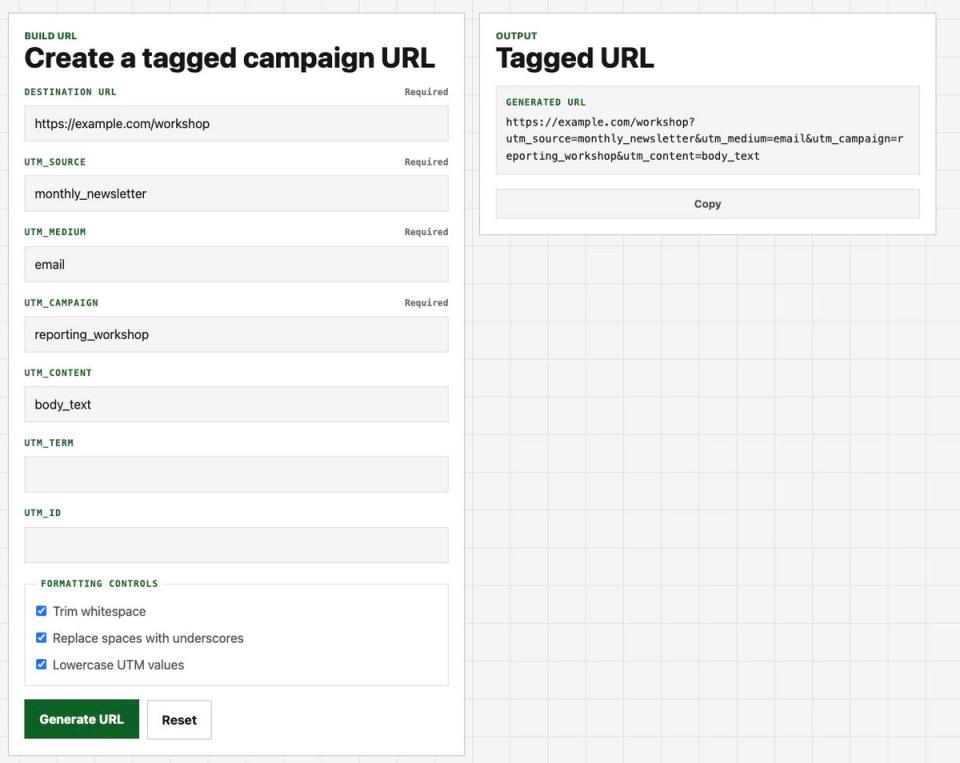
This is a practical way to produce a small set of related links without reinventing the inputs for each placement. Write the placement label beside each copied URL so you can paste it into the intended part of the email.
Avoid filling optional fields merely because they exist. For example, this newsletter has no paid keyword to describe, so a term value would add a decision without serving this task.
Copy this link-building worksheet
Use this worksheet for the next campaign. It is a plain-text working template, not a saved preset inside the tool.
Campaign brief
Destination URL:
Source:
Medium:
Campaign:

Link 1 placement:
Content value:
Copied URL:

Link 2 placement:
Content value:
Copied URL:

Before handing over
[ ] Each URL is beside its intended placement.
[ ] The campaign label matches across these links.
[ ] Optional fields contain useful campaign information only.
[ ] No person's name, email address, or phone number is included.
Download the UTM link worksheet (.txt)
Keep personal information out of every URL field, including the destination's existing parameters. Google specifically warns against sending personally identifiable information in page URLs and campaign parameters. A campaign label should describe the promotion, not identify its recipient. Google Analytics guidance on avoiding PII.
Frequently asked questions
Which fields do I need to fill in?
This builder requires the destination URL, source, medium, and campaign. Content, term, and ID are optional. For the newsletter example, content is useful because the email contains two link placements.
Should I use a different campaign for each button?
For the example here, no. Keep reporting_workshop as the shared campaign and use a different content value for each placement. This preserves one clear promotion label while giving each link a useful description.
Can I start from a link that is already tagged?
The tool includes a Parse URL mode for decoding an existing campaign URL. Use that mode to inspect its UTM values and unrelated query parameters before deciding which labels you want for the new link.
Build your campaign link
Take one real destination and one placement from your next email. Open the free UTM Builder, enter the labels, generate the URL, and copy it into your working worksheet. Once that first link is ready, create the remaining placements by changing only the values that actually differ.