
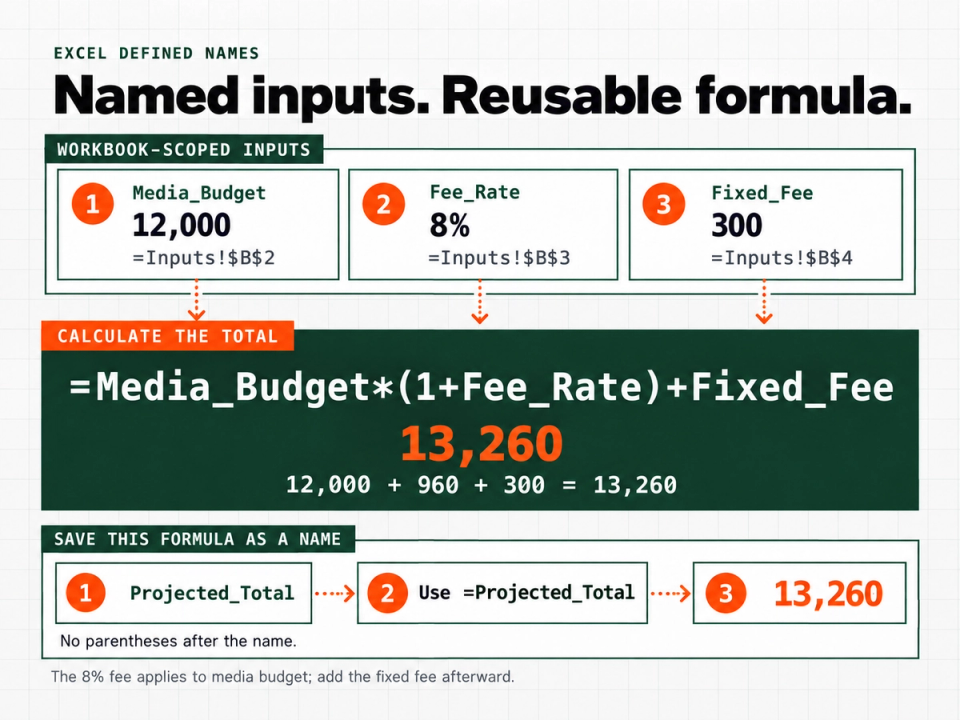
Quick answer: Excel defined names replace cell addresses with meaningful labels. Name the inputs, then use those names in a formula such as =Media_Budget*(1+Fee_Rate)+Fixed_Fee. You can also save that calculation as a named formula and reuse it elsewhere in the workbook.
This tutorial builds a small campaign-cost estimate. The example separates editable assumptions from calculation logic without macros or a custom function. Instructions use desktop Excel for Windows; ribbon wording can differ on other platforms.
Set up three named input cells
Create a worksheet called Inputs. Enter these labels and values:
| Cell | Label in column A | Value in column B | Defined name |
|---|---|---|---|
| B2 | Media budget | 12000 | Media_Budget |
| B3 | Fee rate | 8% | Fee_Rate |
| B4 | Fixed fee | 300 | Fixed_Fee |
The example assumes the percentage fee applies only to media budget, with the fixed fee added afterward. All amounts use the same currency. This is a sample calculation, not a recommended pricing model.
Select B2. Click the Name Box to the left of the formula bar, type Media_Budget, and press Enter. Repeat for B3 and B4 with their corresponding names. This follows Microsoft's cell-naming procedure.
Use readable names without spaces. Avoid names that resemble cell references, such as A1, and do not rely on capitalization to distinguish names. Microsoft's name syntax rules explain the restrictions.
Now open Formulas → Name Manager. Confirm the three names have Workbook scope and these references:
Media_Budget    =Inputs!$B$2
Fee_Rate        =Inputs!$B$3
Fixed_Fee       =Inputs!$B$4
The dollar signs keep each reference fixed. A manually entered relative reference can point somewhere different depending on where a formula uses the name. Check the actual reference rather than assuming the label guarantees the right cell. See Microsoft's Name Manager guidance.
Build and check the calculation
Create a worksheet called Summary. In B2, enter:
=Media_Budget*(1+Fee_Rate)+Fixed_FeeThe result should be 13,260:
- Media budget: 12,000.
- Percentage fee: 12,000 × 8% = 960.
- Fixed fee: 300.
- Total: 12,000 + 960 + 300 = 13,260.
Enter the rate as 8%, not 8. The latter means eight times the budget rather than eight percent.
Change Inputs!B2 to 13000. The result should become 14,340. Restore it to 12000 after testing. This small change checks that the formula follows the intended input instead of a hard-coded amount.
Naming every cell would make this example harder to maintain. Start with assumptions that other formulas need to identify consistently.
Save the calculation as a reusable named formula
If several sheets need the same total, define the calculation once:
- Open Formulas → Name Manager → New.
- Set Name to
Projected_Total. - Set Scope to Workbook.
- In Refers to, enter
=Media_Budget*(1+Fee_Rate)+Fixed_Fee. - Record that the fee applies to media budget only, either in a name comment or visibly beside the inputs, then confirm.
Excel names can represent formulas, not just cell ranges. Microsoft's defined-name documentation covers this use.
On Summary or another sheet, enter:
=Projected_TotalIt should return 13,260 with the original inputs. There are no parentheses after the name: this example defines a calculation, not a function with arguments. Every use reads the same shared assumptions. It does not create an independent scenario for each sheet.
Keep the visible input block and its labels. Moving logic into a name should not hide what a user needs to review.
Choose workbook or worksheet scope deliberately
A workbook-scoped name is available throughout that workbook. A worksheet-scoped name is local unless you qualify it with its sheet name. Where both scopes contain the same name, the local name normally takes precedence. Microsoft documents these scope rules.
For a separate example, create a Scenario sheet, put 15000 in B2, and use Define Name to create Scenario_Budget with scope Scenario, referring to =Scenario!$B$2.
On Scenario, use:
=Scenario_BudgetOn Summary, use:
=Scenario!Scenario_BudgetBoth return 15,000. Keep the original three inputs workbook-scoped. Avoid local duplicates of those names unless you deliberately want different meanings on different sheets.
Use tables for growing lists
The three inputs are individual assumptions. A growing list of campaign costs is a different shape of data.
For that list, use an Excel Table named CampaignCosts, with an Amount column. A total outside the table can use:
=SUM(CampaignCosts[Amount])Structured references adjust as table data changes. You do not need to define a separate fixed range for every column. Microsoft's structured-reference guide explains the table syntax.
Troubleshoot names before rewriting formulas
If a result is wrong, open Name Manager and inspect Scope, Value, and Refers to. Its Names With Errors filter helps locate broken definitions. Microsoft describes these inspection tools.
#NAME?: Check spelling and whether a local name needs its sheet prefix.#REF!: Inspect the definition for a deleted or broken reference.- A believable but wrong number: Check the target cell, duplicate local names, and percentage input.
- A changing reference: Confirm the intended input uses absolute references.
Reusable setup checklist
- Identify the inputs people may change.
- Give those inputs descriptive names.
- Confirm scope and absolute references.
- Document units and calculation assumptions.
- Test one known answer and one changed input.
- Use tables for expanding records.
- Inspect names before handing over the workbook.
Download the finished Excel defined names workbook (.xlsx)
Download the Excel names inspection checklist (.txt)
Frequently asked questions
Can a name refer to a formula
Yes. Projected_Total above contains a formula rather than a cell address.
Do names make calculations automatically correct
No. A clear name can still point to the wrong input. Check references and expected results.
Should every value have a defined name
No. Prioritize shared assumptions and reusable calculations. Table columns already provide descriptive references for records.
For the wider workbook-design context, read The Death of a Workbook, then use this naming pattern to make your shared inputs and calculations easier to inspect.